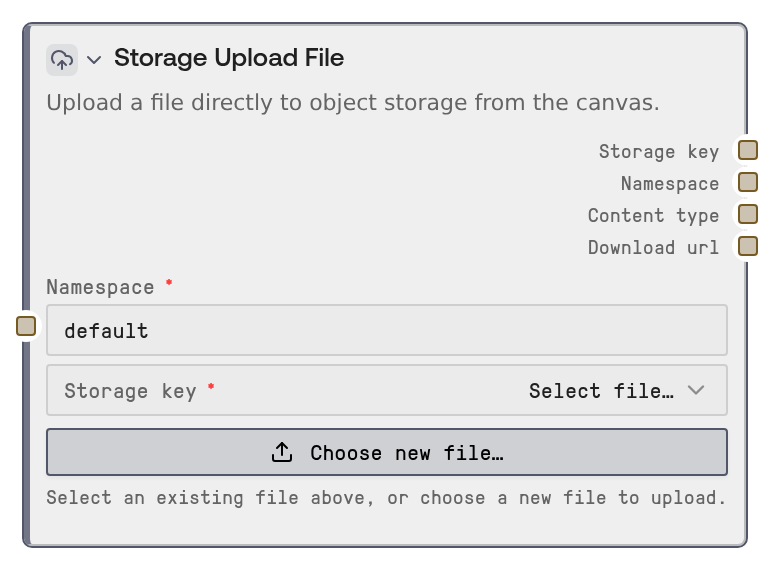
Storage Upload File
Storage Upload File configures a namespace and storage key for a browser-based file upload to persistent object storage. The upload widget sends the file directly to storage without requiring a workflow run, while node execution validates the reference, detects the MIME type from the filename, and returns a temporary download URL when available.
Usage
Use this node when a workflow needs to reference a user-uploaded file such as a PDF report, CSV dataset, image asset, model file, or document attachment. Place it near the start of a storage-backed workflow: select a file in the upload widget, confirm or edit the sanitized storage key, upload it, then connect the outputs to downstream storage consumers. Typical downstream nodes include Storage Read to load the uploaded object, Storage List & URL to generate or refresh signed URLs, and Storage Delete to remove files when they are no longer needed. For best results, use descriptive namespaces such as reports, datasets, or workflow-specific names to avoid collisions, and keep storage keys simple filenames using only letters, numbers, underscores, hyphens, and dots. The node is especially useful for workflows where files must be staged before execution, because the upload happens interactively from the canvas rather than as part of the workflow computation.
| Field | Required | Type | Description | Example |
|---|
| namespace | True | STRING | Logical storage namespace that groups files. If left blank after trimming, it defaults to `default`. Must use only letters, digits, underscores, hyphens, and dots; avoid spaces, slashes, and special characters. | quarterly_reports |
| storage_key | True | STRING | Filename/key where the uploaded file is stored inside the namespace. The upload widget auto-fills this from the selected filename and sanitizes unsupported characters. Must not be empty and must use only letters, digits, underscores, hyphens, and dots. | q2_revenue_summary.pdf |
Outputs
| Field | Type | Description | Example |
|---|
| storage_key | STRING | The validated storage key for the uploaded file. Connect this to nodes such as Storage Read when they need to access the same object. | q2_revenue_summary.pdf |
| namespace | STRING | The namespace where the file is stored. Use this with the storage key to locate the object in downstream storage nodes. | quarterly_reports |
| content_type | STRING | MIME type inferred from the storage key file extension. If the extension is unknown, the node returns `application/octet-stream`. | application/pdf |
| download_url | STRING | Temporary presigned download URL for the uploaded file, valid for about 1 hour when generated successfully. Downstream tools can use it for short-lived file access. | |
Important Notes
- Behavior: The actual file upload is performed by the interactive upload widget before the workflow runs; executing the node validates the configured reference and returns metadata/URL information.
- Security: The
download_url is a temporary signed URL and should be treated as sensitive. It is intended for short-lived access and is valid for approximately 1 hour.
- Limitations:
storage_key and namespace only support simple names containing letters, digits, underscores, hyphens, and dots. Paths with slashes, spaces, or special characters are rejected.
- Integration: Uploads depend on the storage service and browser-accessible object storage configuration. If storage CORS or presigned URL access is misconfigured, the widget may fail even though the node configuration is valid.
Troubleshooting
storage_key must not be empty: Select a file using the upload widget first, or manually enter a valid filename such as customer_export.csv before running the workflow.- Invalid characters in
storage_key or namespace: Rename the file or edit the fields to use only letters, digits, underscores, hyphens, and dots. Replace spaces and symbols with underscores.
- Upload fails with
Network error during upload or Upload failed with status ...: Check that the storage service is reachable, the presigned upload URL is valid, and the storage bucket allows browser PUT requests from the current application origin.
download_url is empty: The file reference may still be returned, but URL generation failed or user context was unavailable. Use Storage List & URL to generate a fresh signed URL later, or verify storage service availability.