Chart
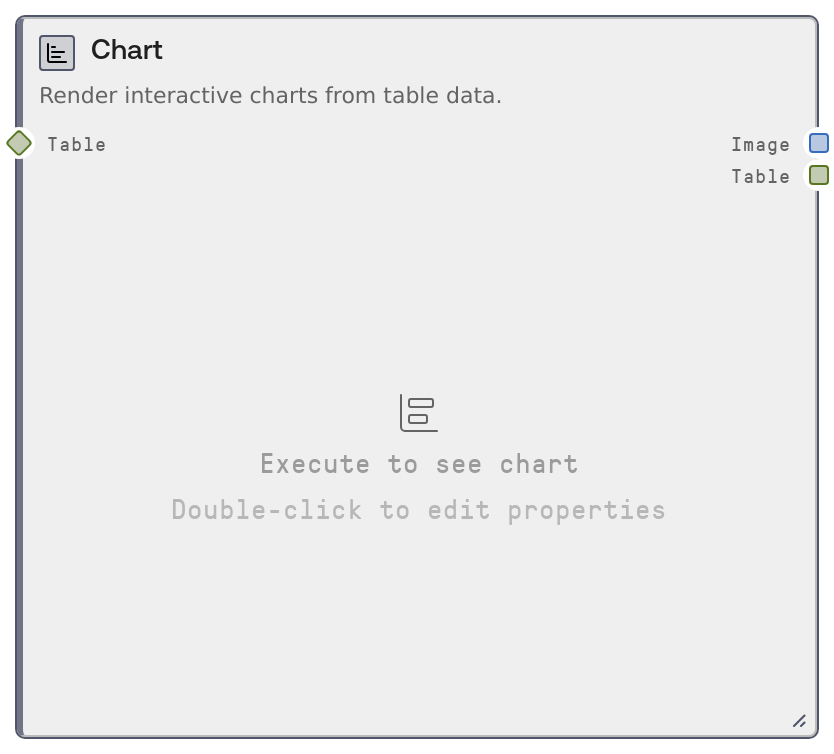
SaltChart creates visualizations from TABLE or DATAFRAME inputs, supporting bar, line, scatter, area, histogram, pie, radar, radial bar, treemap, and composed charts. You choose the chart_type and map table columns to axes, labels, and series. The node outputs a rendered chart image and returns the original table unchanged for downstream analytics or additional visualizations.
Usage
Use SaltChart to turn tabular data into visual summaries inside a Salt workflow. Typical uses include summarizing aggregated metrics, visualizing time-series trends, exploring distributions, and presenting categorical breakdowns. Place it after nodes that produce or transform tables (for example, SQL query nodes, CSV/Excel importers, or data transformation/aggregation nodes). Connect the image output to report or dashboard nodes, file exporters, or notification/integration nodes that can embed images, while feeding the table output into additional analysis or further chart nodes. Pick bar/line/area for trends and comparisons, scatter for relationships between two numeric variables, histogram for distributions, pie/radialbar/treemap for shares and hierarchy, radar for multi-metric comparisons, and composed to overlay bars and lines. Configure x_column, y_columns, label_column, and value_column according to the chosen chart_type; the UI only exposes the relevant options per type. For best results, ensure numeric fields are correctly typed before charting, keep labels concise but descriptive, and avoid unnecessarily large width/height when generating many charts.
| Field | Required | Type | Description | Example |
|---|
| table | True | TABLE | Tabular data to visualize. Accepts TABLE or DATAFRAME types and is normalized internally. Must have at least one row; column names referenced by other inputs must exist here. | A TABLE with columns ['month', 'revenue', 'region'] and rows like {'month': '2024-01', 'revenue': 125000.0, 'region': 'EMEA'}. |
| chart_type | True | STRING | Type of chart to render. One of: 'bar', 'line', 'scatter', 'area', 'histogram', 'pie', 'radar', 'radialbar', 'treemap', 'composed'. This determines which other inputs are relevant. | bar |
| x_column | False | STRING | Column used for the X axis or categories. Required for bar, line, scatter, area, radar, and composed charts. Must exactly match a column name in the input table. | month |
| y_columns | False | STRING | Comma-separated list of column names used for Y values. For bar, line, area, radar, and composed charts, this can include multiple series (e.g. 'revenue, profit'). For scatter, this should be a single numeric column. | revenue, profit |
| column | False | STRING | Single numeric column for histograms. Only used when chart_type is 'histogram'. Must refer to a numeric column in the table. | order_value |
| label_column | False | STRING | Column providing labels for pie, radial bar, and treemap charts. Only used when chart_type is 'pie', 'radialbar', or 'treemap'. Usually a categorical column such as product category or region. | product_category |
| value_column | False | STRING | Numeric column providing values for pie, radial bar, and treemap charts. Only used when chart_type is 'pie', 'radialbar', or 'treemap'. Values determine slice size or rectangle area. | total_revenue |
| title | False | STRING | Optional title displayed above the chart. If omitted, the chart renders without a title. | Monthly Revenue by Region |
| x_label | False | STRING | Label for the X axis. If left empty, most chart types fall back to the selected x_column name. | Month (2024) |
| y_label | False | STRING | Label for the Y axis. If left empty, charts often default to the first Y column name or a generic label such as 'Count' for histograms. | Revenue (USD) |
| color_column | False | STRING | Scatter-only option. Column used to color points, adding a categorical or numeric dimension by color. Column must exist in the table. | region |
| size_column | False | STRING | Scatter-only option. Numeric column used to scale point size, adding another quantitative dimension. | customer_count |
| group_column | False | STRING | Bar-only option. Categorical column that splits bars into groups within each X category (grouped or clustered bars). | region |
| orientation | False | STRING | Bar-only option. Orientation of the bars: 'vertical' or 'horizontal'. Affects which axis shows categories versus values. | horizontal |
| sort_bars | False | STRING | Bar-only option. Sort bars by their aggregated values. Options: 'none', 'ascending', or 'descending'. Sorting is by the sum of Y values per category. | descending |
| show_markers | False | BOOLEAN | Line/area/composed option. When true, shows point markers on lines, making individual data points more visible. | true |
| bins | False | INT | Histogram-only option. Number of bins (bars) in the histogram. 0 enables automatic bin computation. Valid range is 0 to 500. | 30 |
| show_kde | False | BOOLEAN | Histogram-only option. If true, overlays a kernel density estimate curve on top of the histogram to show a smoothed distribution. | true |
| width | False | INT | Width of the rendered chart image in pixels. Must be between 200 and 3840. Larger values increase detail but also resource usage. | 1024 |
| height | False | INT | Height of the rendered chart image in pixels. Must be between 200 and 2160. Taller charts can better show many categories or dense series. | 640 |
Outputs
| Field | Type | Description | Example |
|---|
| image | IMAGE | Rendered chart image produced from the input table and chart configuration. Suitable for saving, embedding in reports, or displaying in UIs. | An IMAGE object representing a 1024x640 PNG bar chart showing monthly revenue grouped by region. |
| table | TABLE | The original input table, passed through unchanged for use by downstream nodes (for example additional charts, filters, or modeling). | The same TABLE as was provided on input, with columns like ['month', 'revenue', 'region'] and all original rows. |
Important Notes
- Performance: Rendering large datasets or high-resolution images can be CPU and memory intensive; consider pre-aggregating data or downsampling and keep width/height moderate for batch workflows.
- Limitations: Column names must exist in the input and be suitable for the chart type (e.g., histogram and scatter require numeric columns); otherwise validation inside the chart renderers will raise errors.
- Behavior: All string inputs (including column names and labels) are trimmed of leading and trailing whitespace before use, which can resolve subtle naming issues but also normalizes those values.
- Behavior: If an unsupported chart_type is provided, the node raises a clear error listing available chart types instead of defaulting, ensuring misconfiguration is visible.
Troubleshooting
- Unknown chart type: If you see an error indicating an unknown chart type, ensure chart_type is exactly one of the supported values like 'bar', 'line', 'scatter', 'area', 'histogram', 'pie', 'radar', 'radialbar', 'treemap', or 'composed'.
- Column not found: Errors mentioning that a column does not exist for x_column, y_columns, label_column, or value_column indicate a mismatch with the table schema; verify spelling, case, and that upstream nodes produced the expected columns.
- Non-numeric data for numeric chart: If histogram or scatter charts fail with numeric validation errors, the selected column contains non-numeric or incompatible values; clean or cast the data upstream or select another column.
- Empty or all-null data: If the table is empty or selected columns are entirely null, validation may fail; adjust upstream filters, joins, or transformations to ensure there is at least some valid data in the chosen columns.