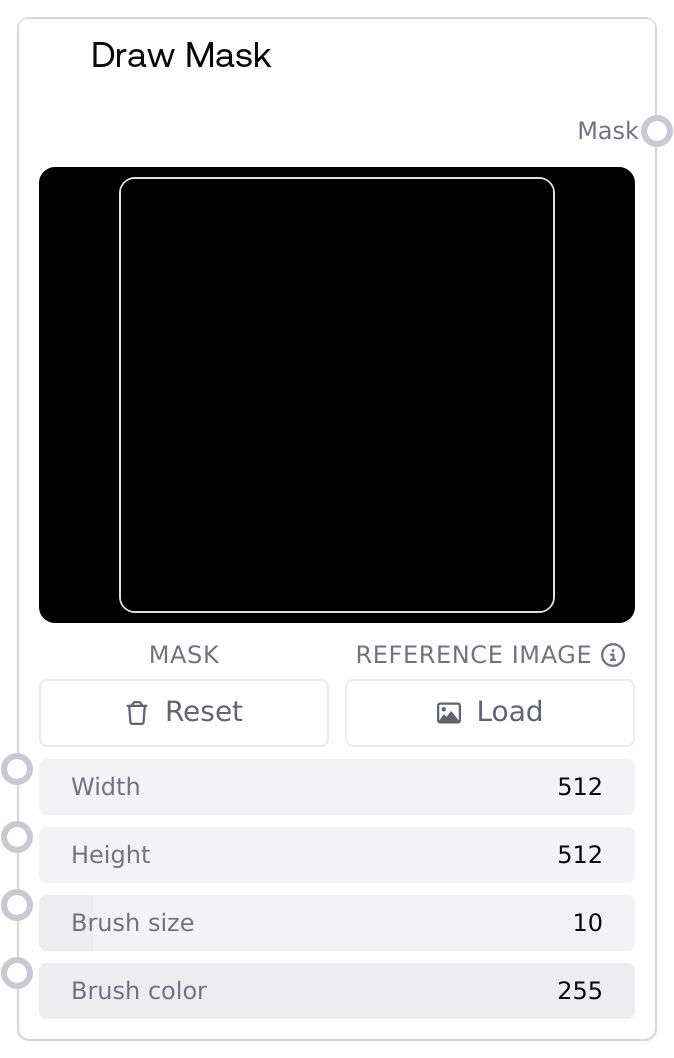
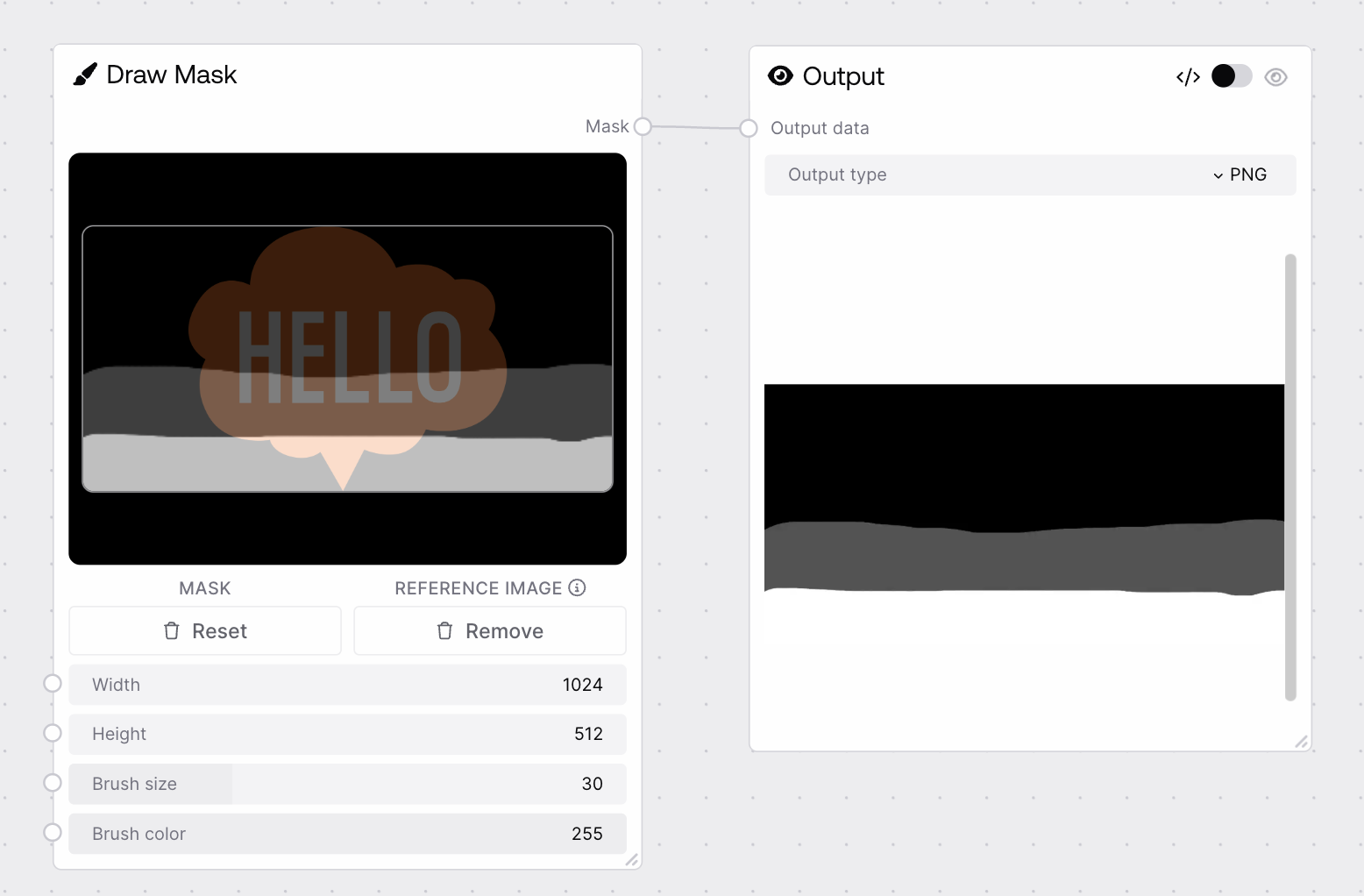
Draw Mask converts a user-drawn canvas from the Salt UI into a single-channel grayscale mask sized to your specified width and height. It normalizes pixel values to the [0,1] range and, if the canvas is completely empty, outputs a correctly shaped all-zero tensor using your configured dimensions. This makes it well suited for manual region control in image or mask-driven workflows.
Use Draw Mask whenever you need a custom, hand-drawn mask to control where an operation applies, such as defining inpainting regions, selective editing areas, or compositing mattes. Place it early in your workflow where you define spatial geometry: set the width and height to match your main image resolution or the expected input size of downstream nodes that consume a MASK. In the Salt UI you draw directly on the canvas; the node receives that canvas plus width, height, and brush settings and outputs a MASK tensor. Typically, there are no upstream computational nodes feeding canvas; instead, you align Draw Mask’s resolution with nodes that generate or load images. Downstream, connect the mask output to nodes that accept MASK inputs, such as inpainting or blending nodes. As a best practice, configure width and height first, then choose brush_size for the desired detail level and brush_color for mask strength (0 for off, 255 for fully on). If you later change resolution, re-check or redraw the mask to keep regions correctly aligned.
Interactive drawing content provided by the Salt UI as a base64-encoded image string. You paint strokes on the canvas using the configured brush size and color, and that rendered image is passed here. It must be a valid encoded image; users generally interact with it only through the UI, not by manually editing the string.
data:image/png;base64,iVBORw0KGgoAAAANSUhEUgAA...
width
True
INT
Target width in pixels for the exported mask. The canvas aspect ratio in the UI updates as you change this, and the output tensor will have exactly this width. Valid range is 32 to 2048 (step 1). Match this to your working image width so the mask overlays correctly.
768
height
True
INT
Target height in pixels for the exported mask. The canvas aspect ratio in the UI updates as you change this, and the output tensor will have exactly this height. Valid range is 32 to 2048 (step 1). Match this to your working image height so the mask aligns spatially with your images.
1024
brush_size
True
INT
Brush size, in pixels, used for drawing on the canvas in the UI. This affects the visual thickness of your strokes but not the tensor shape. Valid range is 1 to 100 (step 1). Use larger values for broad regions and smaller values for fine detail.
24
brush_color
True
INT
Grayscale brush intensity when drawing on the canvas. 0 is black (becomes 0.0 in the mask, fully inactive), 255 is white (becomes 1.0, fully active), and intermediate values yield partial mask intensities. Valid range is 0 to 255 (step 1).
A single-channel grayscale mask tensor of shape (1, height, width) with float values normalized to [0,1]. If the drawn canvas is fully empty (all pixels black), the node returns an all-zero tensor with your configured width and height; otherwise it resizes the drawn image to (width, height), converts to grayscale, and divides by 255. Downstream nodes can use this to gate where effects apply, blend images, or define regions of interest.
A tensor-like structure with shape (1, 1024, 768), for example [[[0.0, 0.0, 1.0, ...], ...]], where 0.0 indicates no effect and 1.0 indicates fully active masked regions.
Performance: Processing is lightweight, but very large resolutions (for example 2048×2048) increase memory usage and can slow workflows with many concurrent masks.
Limitations: Output is always a single-channel grayscale mask; any color information in the canvas is converted to grayscale, and multi-channel masks are not supported.
Behavior: If the canvas is completely empty (all pixels are black), the node constructs a new zero-valued tensor using the configured width and height instead of relying on the canvas image size, ensuring consistent output dimensions.
Behavior: Changing width or height after you have drawn will cause the existing strokes to be resampled to the new resolution; always re-check the mask overlay against your images when resolution changes.
Mask appears shifted or scaled relative to my image: Ensure width and height on Draw Mask exactly match the image resolution used downstream. If you resize images elsewhere, update Draw Mask to the same dimensions and, if necessary, redraw the mask.
Downstream node reports incompatible mask size or shape: The downstream node may expect a different resolution or mask format. Verify its expected height and width and set Draw Mask accordingly; confirm that you are connecting the MASK output to the correct input port.
Mask has little or no visible effect: If brush_color is low (near 0), resulting mask values will be close to 0 after normalization. Use brush_color 255 for fully active regions, and confirm that the downstream node is configured to use the mask input.
Errors about invalid image or decoding issues: The canvas input must be a valid base64-encoded image string. Avoid editing it manually; if generating it programmatically, ensure a correct data URL prefix and valid base64 payload.