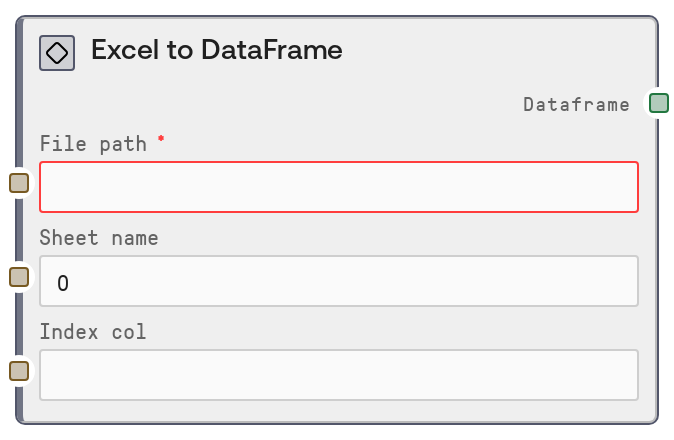
Excel to DataFrame
This node loads tabular data from an Excel workbook into a DATAFRAME output that is directly compatible with all Salt table-processing nodes. You can select a worksheet by index or name and optionally choose a column to become the DataFrame index. It handles modern Excel formats and ensures the required Excel engine is available before reading.
Usage
Use this node when you need to bring data stored in Excel into a Salt workflow for analysis, cleaning, joining, or visualization. It is typically placed immediately after a file-ingestion node that yields a path to an Excel file (for example, a File Upload or a Storage Reader node). Configure file_path from that upstream node, set sheet_name to either a numeric index ("0" for the first sheet, "1" for the second, etc.) or the exact sheet tab name, and optionally set index_col to a column header you want to use as the DataFrame index (such as an ID or timestamp). The resulting DATAFRAME can then be passed into downstream nodes like table filtering, joining, aggregation, feature engineering, or exporting (for example, to CSV or database loaders). In workflows with multi-sheet workbooks, explicitly setting sheet_name is recommended to avoid loading the wrong tab. This node is especially useful for BI and analytics scenarios where analysts maintain data in spreadsheets but want to use Salt for automated transformations and model scoring.
| Field | Required | Type | Description | Example |
|---|
| file_path | True | STRING | Path to the Excel file to read. This should be a valid, accessible path in the current execution environment, usually provided by an upstream File-related node. Supports common Excel extensions such as .xlsx, .xlsm, .xltx, .xltm, and .xls. If the file does not exist at this path or is not readable, the node will fail at runtime. | /mnt/shared/datasets/marketing/leads_2024Q1.xlsx |
| sheet_name | False | STRING | Which sheet in the workbook to load. If this string can be parsed as an integer (e.g. "0", "1"), it is treated as a zero-based sheet index (0 = first sheet). Otherwise, it is interpreted as the literal sheet name as shown in Excel. If left empty, the node defaults to the first sheet (index 0). | Leads_Raw |
| index_col | False | STRING | Optional column name to set as the DataFrame index. When provided, this must match exactly one of the header names in the selected sheet. If left empty, the DataFrame uses the default integer index (0..N-1). Setting this is useful when you have a natural primary key or time index and want downstream nodes to rely on that index. | lead_id |
Outputs
| Field | Type | Description | Example |
|---|
| dataframe | DATAFRAME | A DATAFRAME object representing the selected Excel worksheet as a tabular pandas DataFrame. Columns correspond to Excel columns, and rows correspond to data rows in the sheet. If index_col was specified and found, that column becomes the index; otherwise, a sequential integer index is used. This output can be wired directly into any node that accepts TABLE or DATAFRAME for further filtering, joining, aggregation, feature engineering, or export. | A DataFrame with columns ["lead_id", "created_at", "source", "country", "converted"] and 12500 rows, indexed by "lead_id" when index_col is set to "lead_id". |
Important Notes
- Performance: Reading very large Excel files or workbooks with many formulas and formatting can be slow and memory-intensive; for multi-GB data, consider converting to CSV or a columnar format beforehand.
- Dependencies: Modern Excel formats such as .xlsx, .xlsm, .xltx, and .xltm require the openpyxl package; if it is missing, the node raises a clear runtime error instructing you to install it in the execution environment.
- Behavior: The sheet_name parameter is first interpreted as an integer index if possible; only non-numeric strings are treated as sheet names. This can be important if your sheet is literally named "0" or "1".
- Limitations: Complex Excel features like merged cells, pivot tables, formulas, charts, and formatting are not preserved; the node focuses on reading tabular cell values into columns and rows, which may result in NaNs or unexpected headers if the sheet layout is irregular.
Troubleshooting
- Error about missing openpyxl or unsupported .xlsx format: Install the openpyxl package in your environment or switch to a runtime image that includes it, then rerun the workflow.
- File not found or permission denied: Verify that file_path matches the path produced by the upstream File node and that the file is present and readable from the worker environment (for example, correct mount points or storage configuration).
- Sheet not found or invalid sheet_name: Confirm the sheet name and its spelling by opening the workbook, or use a numeric index like "0" for the first sheet. Adjust the sheet_name input accordingly.
- Index column not found: If specifying index_col causes a key or column error, check that the provided name exactly matches a column header in the sheet, including case and whitespace. If necessary, clear index_col to use the default integer index or rename the column in Excel.