Composite Images
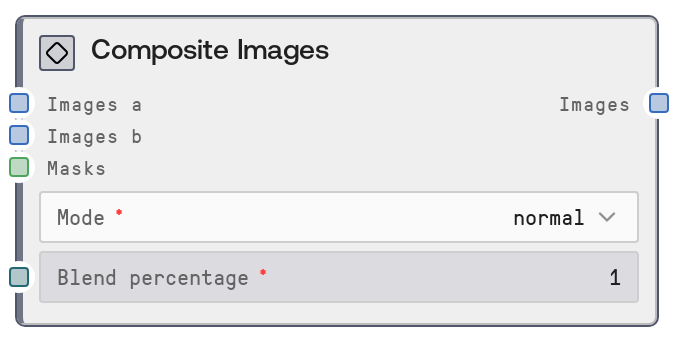
This node composites two image batches using familiar blend modes such as multiply, screen, overlay, and others. It resizes and aligns the secondary batch to the primary, applies the selected blend mode, and then mixes the result back into the base images according to a blend percentage and optional masks. This allows localized, strength-controlled blending similar to layer blending in image editors.
Usage
Use this node when you need to combine two sets of images with creative or corrective blending effects (for example, adding textures to photos, mixing stylized render passes with originals, or applying color-only overlays). Place it after nodes that generate or load your base images and overlay images, and before final color correction, resizing, or export nodes. Connect your main images to "images_a" and your overlay or effect images to "images_b". Choose a "mode" (e.g., "multiply" for darkening, "screen" for brightening, "overlay" or "soft_light" for contrast-enhancing blends, "color" or "hue" for color-transfer-style effects). Use "blend_percentage" to control how strongly the blend result influences the final output. Optionally, connect "masks" from masking or segmentation nodes to confine the blend to specific regions, such as skies, foreground subjects, or backgrounds. This node fits naturally in ImageBlend/Composite pipelines where you want fine control over how two image sources are merged.
| Field | Required | Type | Description | Example |
|---|
| images_a | True | IMAGE | Primary image batch serving as the base layer. Must be a batch of images in Salt’s tensor image format, with consistent size and color channels across the batch. The output batch will inherit resolution and color mode from this input. | A batch of 4 1024x1024 RGB landscape photos that will receive texture and color enhancements. |
| images_b | True | IMAGE | Secondary image batch to be blended over "images_a". If this batch has fewer images than "images_a", the last image of "images_b" will be reused for remaining positions. Each image is resized to match the corresponding "images_a" size and converted to the same mode before blending. | A batch of 2 high-resolution cloud and light-ray overlays that will be resized and reused across 4 base landscape photos. |
| mode | True | STRING | Blend mode specifying how pixels from "images_b" are combined with those from "images_a". Supported values: "normal", "color", "color_burn", "color_dodge", "darken", "difference", "exclusion", "hard_light", "hue", "lighten", "multiply", "overlay", "screen", "soft_light". Each mode corresponds to a standard blending operation implemented via pilgram’s CSS blending functions. | soft_light |
| blend_percentage | True | FLOAT | Global intensity for the blending effect, in the range 0.0 to 1.0 with step 0.01. When a single float is provided, it is applied to all images. Internally, it can be treated as a list: each image index uses the corresponding value, and if the list is shorter than the batch, the last value is reused. Higher values make the blend result more dominant over the original base image. | 0.6 |
| masks | False | MASK | Optional batch of masks that restrict the blended effect to certain regions. Masks are converted to single-channel images and resized to match "images_a". If fewer masks than base images are provided, the last mask is reused for the remaining images. Brighter areas of the mask allow more of the blend to show; darker areas keep closer to the original base content, with the final strength also scaled by "blend_percentage". | A batch of 4 grayscale masks where skies are white and foregrounds are black, so a color-dodge cloud overlay in "images_b" only affects the sky regions. |
Outputs
| Field | Type | Description | Example |
|---|
| images | IMAGE | Batch of composited images with the same size, channels, and batch length as "images_a". Each output image is created by blending the aligned pair from "images_a" and "images_b" using the selected mode, then compositing that result back onto the original according to "blend_percentage" and optional "masks". These images can be fed into further compositing, adjustment, or export nodes. | A batch of 4 1024x1024 RGB landscapes where a cloud overlay has been blended using "screen" mode at 0.6 intensity, brightening skies while leaving foregrounds largely unchanged. |
Important Notes
- Performance: Each image is converted between tensor and PIL representations, resized, and processed via pilgram blending; large images (for example, 2K or 4K) or large batches will increase processing time and memory usage.
- Limitations: Only the documented blend modes are available. Supplying a mode name outside the list will fail because no corresponding blending function exists.
- Behavior: If the "images_b" batch is shorter than "images_a", the node reuses the last image in "images_b" for all remaining indices, which can unintentionally repeat the same overlay across many outputs.
- Behavior: When masks are provided, they are converted to luminance and resized, which can soften edges; very low-contrast or mostly dark masks may make the effect appear weaker than the chosen "blend_percentage" suggests.
Troubleshooting
- Common Error 1: "AttributeError" or function-not-found related to blending mode – this indicates an invalid mode string. Ensure that "mode" is exactly one of: normal, color, color_burn, color_dodge, darken, difference, exclusion, hard_light, hue, lighten, multiply, overlay, screen, soft_light.
- Common Error 2: Output images look unchanged – verify that "blend_percentage" is greater than 0, check that "images_b" is not blank or uniform, and confirm that any masks are not entirely black or extremely dark after resizing and conversion.
- Common Error 3: Repeated overlays on multiple outputs – this occurs when there are fewer images in "images_b" than in "images_a". Provide a matching batch length, or intentionally design the overlay batch knowing the last image will be reused.
- Common Error 4: Harsh artifacts or odd color shifts – some modes (such as "color_dodge" or "color_burn") can exaggerate extreme values. Try lowering "blend_percentage", choosing a softer mode like "soft_light", or preprocessing "images_b" to reduce extremes.